WordPress, Gutenberg
MentoClasses
Your entire CSS library. One search away.
Every CSS class you’ve ever written is already on your site. The problem is finding it when you need it. MentoClasses scans your stylesheets automatically, builds a living searchable library, and puts a dedicated search panel right inside the Gutenberg block editor. Search by name, description, or tag. Copy with one click. No switching screens, no memorising class names, no duplicates.
01
Stop writing the same class twice
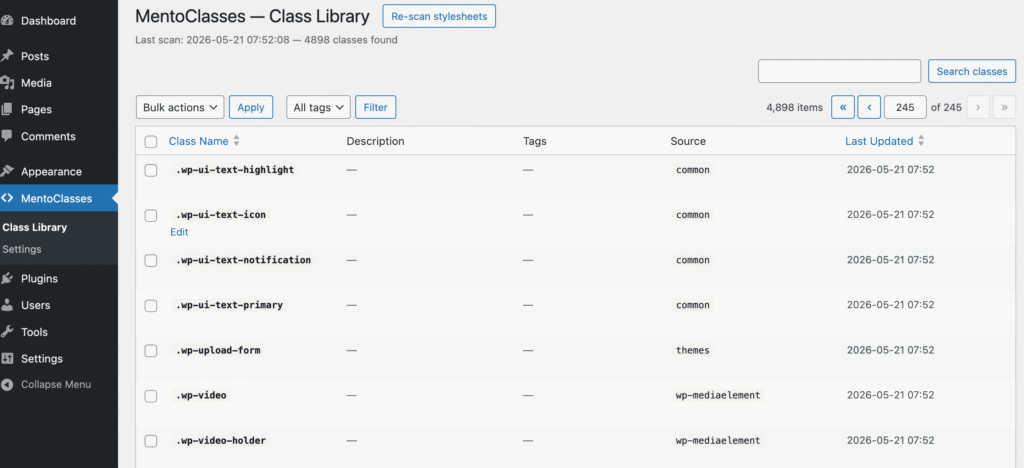
Every growing WordPress project hits the same wall. Your stylesheet has hundreds of classes. Some are documented, most are not. New team members guess names. Experienced developers forget. The result is a codebase full of .btn-primary, .button-main, .cta-button — all doing exactly the same thing. MentoClasses solves this at the source. It scans your stylesheets once, stores every class in a searchable registry, and makes that registry available directly inside the editor — so whoever is building the page always works from the same single source of truth.
02
A smarter way to manage CSS classes in Gutenberg
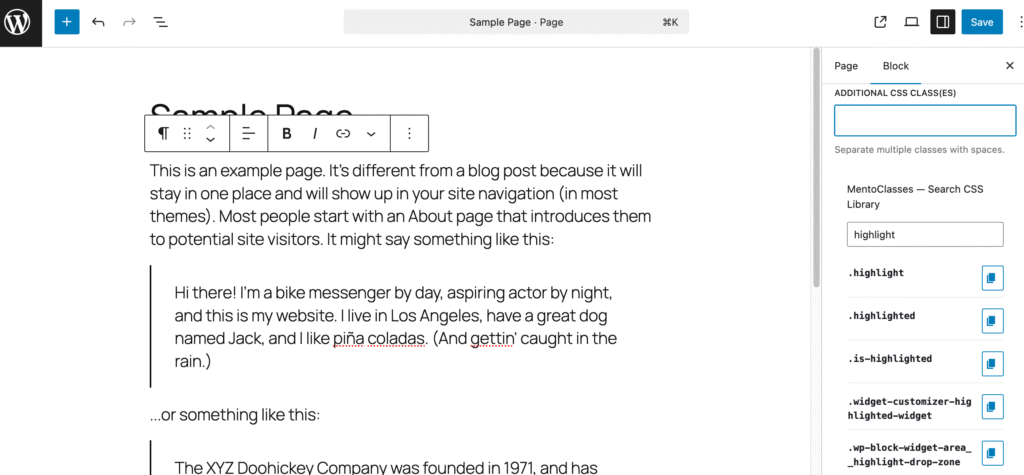
MentoClasses adds a live search panel inside the block inspector’s Advanced panel — right where you already add CSS classes. Type any keyword and matching classes appear instantly, pulled from your own stylesheet. Each class can carry a plain-language description and free-text tags, so your whole team speaks the same language. The more you use a class, the higher it rises in your personal list. Mark your go-to classes as favourites and they are always one click away. The native “Additional CSS class(es)” field is never modified — your existing workflow stays exactly as it was.
03
Built for teams. Useful for solo developers.
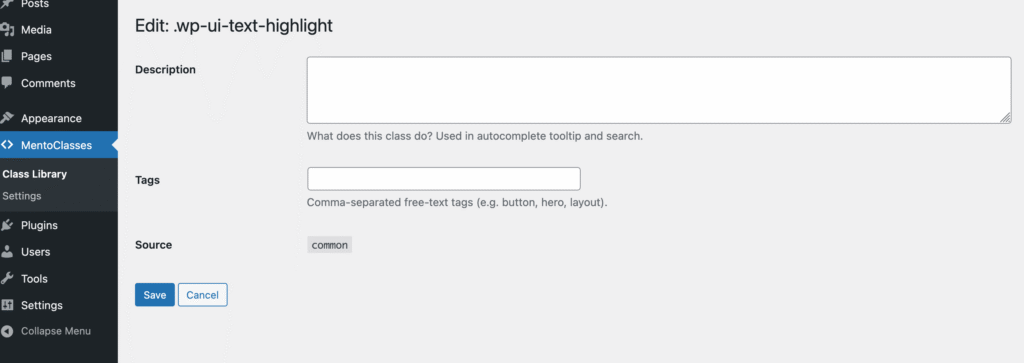
When one developer builds the stylesheet and another builds the pages, things break down fast. MentoClasses bridges that gap. The class registry is shared across the whole site, but each user keeps their own personal list of favourites and most-used classes. Editors see the classes relevant to their work. Developers can enrich any class with a description and tags directly from the admin panel. Everyone works from the same library. No Slack messages asking “what was that card class again?” No outdated documentation to maintain separately.
04
Automatic scanning. Always up to date.
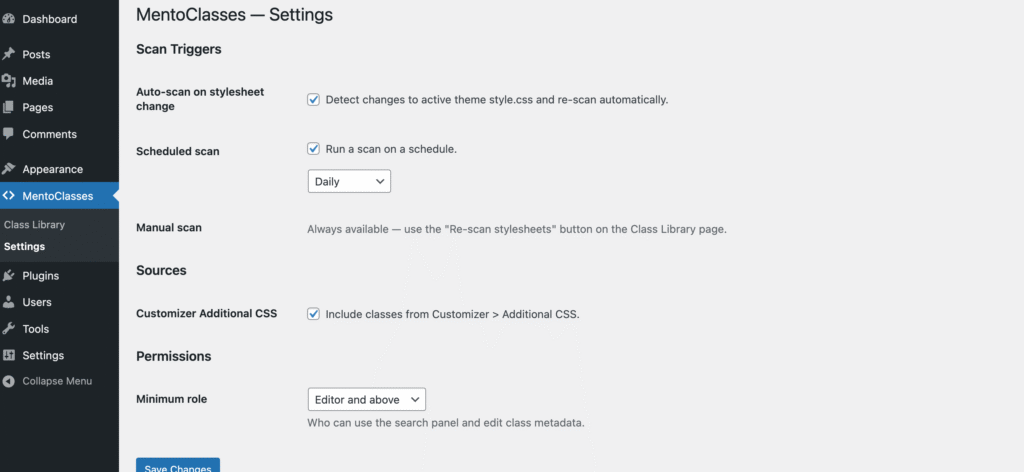
MentoClasses scans your registered stylesheets, your theme’s style.css, and your Customizer additional CSS automatically. You can trigger a scan manually with one click, set it to run every time you publish Customizer changes, or schedule it to run daily, twice daily, or weekly in the background. The result is a CSS class registry that stays current without any manual effort. Every class is stored with its source file so you always know exactly where it comes from.
USE CASES
Real problems. Real answers.
Here is what you can do in under a minute.
SCENARIO 01 · CLASS DUPLICATION
You already have this class. You just don’t know it.
A developer adds .card-featured to the stylesheet. Three weeks later a designer adds .featured-card to the same stylesheet because nothing was searchable. Both classes exist, both are used, both do the same thing. Your CSS grows. Your codebase gets harder to maintain.
How to fix it with MentoClasses:
- Open Gutenberg → select any block
- Go to block inspector → Advanced panel
- Type
featuredin the MentoClasses search field - See
.card-featuredappear with its description - Copy → paste into the CSS class field
No duplicate created. Existing class reused. Codebase stays clean.
SCENARIO 02 · ONBOARDING A NEW TEAM MEMBER
Your new designer doesn’t know your CSS naming system.
A new team member joins. They open Gutenberg and start building. They type class names from memory or from a stylesheet they have to download and search manually. They get it wrong half the time. You spend time in code review catching it.
How to fix it with MentoClasses:
- Add descriptions and tags to your key classes in MentoClasses admin
- Tag
.btn-primaryasbutton, cta, primary action - New designer types
buttonin the search panel - All button-related classes appear with descriptions
- They pick the right one — first time
Faster onboarding. Fewer code review corrections. Shared language across the team.
Get MentoClasses
Free to use. Self-hosted.