
If you’ve started running Facebook or Instagram ads, you’ve probably run into a message telling you to “install your Pixel.” It sounds technical, and most explanations either oversimplify it into “it tracks your visitors” or bury you in developer documentation. Neither actually answers the question.
So here’s the plain-English version: what is Meta Pixel, what does it actually do on your site, and why does every Meta Ads guide insist you set one up before spending a single euro on ads?
What the Meta Pixel Actually Is (In Plain English)
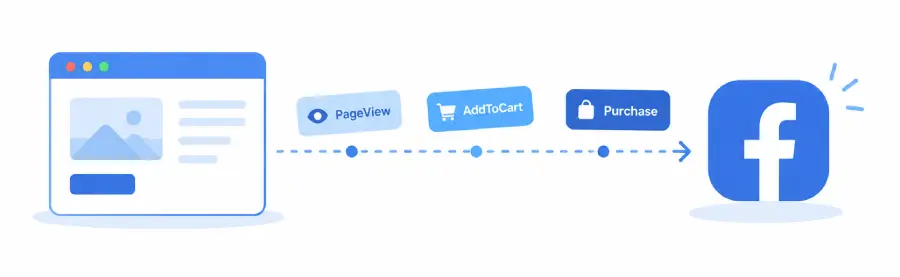
The Meta Pixel is a small piece of JavaScript code that Meta (the company behind Facebook and Instagram) gives you to add to your website. Once it’s installed, it quietly reports specific actions — a page view, a product view, an add-to-cart, a purchase — back to Meta’s ad system.
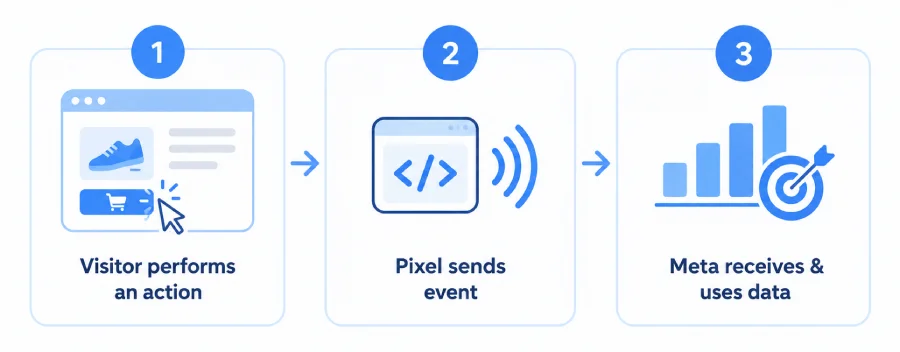
Think of it less like a tracking device and more like a messenger. Every time a visitor does something meaningful on your site, the Pixel sends a short message to Meta: “this person just did X.” Meta collects those messages and uses them for two main jobs — measuring whether your ads are working, and finding more people who look like the ones who convert.
Every Meta advertiser gets one Pixel ID per ad account by default, though larger businesses sometimes use several. It’s free to create, and it’s not tied to any specific plugin or platform — it’s just a snippet of code that needs to exist somewhere on your pages.
How the Meta Pixel Works, Step by Step
The Code Snippet on Your Site
At its core, the Pixel is a base JavaScript snippet that loads a small tracking library from Meta’s servers (connect.facebook.net). Once that library loads, it exposes a global function — fbq() — that your site can call to report events.
The base snippet alone doesn’t do much. It just establishes the connection. The real value comes from the second part: calling fbq() at the right moments to tell Meta what’s happening.
Standard Events (PageView, ViewContent, AddToCart, Purchase)
Meta defines a set of “standard events” — pre-named actions it already knows how to interpret. The most common ones for an online store are:
- PageView — fires on every page load
- ViewContent — fires when someone views a product page
- AddToCart — fires when a product is added to the cart
- InitiateCheckout — fires when someone starts the checkout process
- Purchase — fires when an order is completed, usually including the order value and currency
Each of these gets sent as a separate fbq('track', 'EventName', {...data}) call, with relevant details like product ID, price, or currency attached. Because they use Meta’s standard names, Meta’s reporting and optimization tools automatically understand what they mean — you don’t need to explain what “Purchase” means to Meta’s algorithm.
How Meta Uses This Data for Ad Optimization
This is the part most explanations skip. The Pixel isn’t just for measurement — it actively feeds Meta’s ad delivery algorithm.
When you run a “Purchase” campaign, Meta’s system looks at who has recently triggered a Purchase event on your site and uses that pattern to find similar people to show your ads to. This is often called a “lookalike audience,” and it’s one of the main reasons advertisers care so much about getting the Pixel installed correctly — bad data in means bad targeting out.
The Pixel also powers retargeting: showing ads to people who viewed a product but didn’t buy, based on the ViewContent or AddToCart events it captured.
Meta Pixel vs. Conversions API (CAPI) — A Quick Preview
You may also come across the term Conversions API (CAPI). Where the Pixel is browser-side — it runs in the visitor’s browser and depends on that browser actually loading and executing the script — CAPI is server-side. Your website’s server sends the same kind of event data directly to Meta, without relying on the visitor’s browser at all.
The two aren’t competitors; Meta recommends running both together, since CAPI can fill in events the browser-side Pixel misses (more on why that happens below). We’ll go deeper into browser-side vs. server-side tracking in a dedicated article — for now, just know that the Pixel described in this guide is the browser-side half of the picture.
Common Misconceptions About the Meta Pixel
A few things worth clearing up:
- “The Pixel is spyware.” It only reports events you configure it to report, and only to your own connected Meta ad account. It’s not a hidden surveillance tool — it’s closer to standard web analytics, just built for ad platforms specifically.
- “Installing the Pixel means I’m automatically GDPR-compliant… or automatically non-compliant.” Neither is true by default. Whether the Pixel fires (and what data it sends) should depend on visitor consent, which is a separate system layered on top of the Pixel itself.
- “One Pixel install and I’m done.” The base snippet alone only tracks page views. Getting real value — accurate ad optimization, retargeting, lookalike audiences — requires the standard events (AddToCart, Purchase, etc.) to actually fire correctly on the right pages.
- “If ads aren’t converting, the Pixel must be broken.” Sometimes, yes. But a “working” Pixel can also under-report due to ad blockers, browser privacy restrictions, or consent banners silently blocking the script — the Pixel can be installed correctly and still miss events for reasons outside your control.
Do You Need a Plugin to Install It on WooCommerce?
Technically, no — you could paste the base Pixel code into your theme’s header and manually add fbq('track', ...) calls at every relevant point in your WooCommerce templates. In practice, almost nobody does this by hand, for a few reasons:
- WooCommerce events (AddToCart, InitiateCheckout, Purchase) need to hook into WooCommerce’s internal actions, not just page loads
- Manual code breaks when your theme updates or when WooCommerce changes its hooks
- You get no visibility into whether events are actually firing — until your ad account shows strange numbers
This is exactly the gap tracking plugins fill: they hook into the right WooCommerce actions, map them to Meta’s standard events automatically, and handle the code so a theme update doesn’t quietly break your Purchase tracking.
How PixLedger Shows You Exactly What Your Pixel Is Doing
Most plugins treat Pixel installation as “set it and forget it” — you enter your Pixel ID, and from then on you’re trusting that events are firing correctly, with no way to check besides Meta’s own delayed, aggregated reporting.
PixLedger takes a different approach. Every event PixLedger fires to your Meta Pixel — PageView, ViewContent, AddToCart, Purchase, and more — is also logged locally in your WordPress database, in real time, with:
- The exact event name and payload sent
- A status: sent, failed, or blocked by consent
- The specific reason if something didn’t fire
Instead of wondering whether your Pixel is actually tracking Purchases correctly, you can open PixLedger’s Event Log and see it happen, event by event, as it happens on your own site.
Pro Tip: When you’re verifying your setup, don’t rely only on Meta’s own Pixel Helper browser extension — it only shows what fired in that browser session. If a caching plugin serves a cached version of your thank-you page to a returning visitor, the Purchase event can silently fail to fire for them even though it worked fine when you tested it yourself. Checking a server-side event log (not just your own browser) is the only way to catch that kind of intermittent failure.
Frequently Asked Questions
Does the Meta Pixel work without WooCommerce?
Yes. The base Pixel and standard events like PageView work on any WordPress site. WooCommerce-specific events (AddToCart, Purchase) require WooCommerce to be active, since they hook into WooCommerce’s own actions.
Is the Meta Pixel the same as a Facebook tracking pixel or ad pixel?
Yes — “Meta Pixel,” “Facebook Pixel,” and “Facebook ad pixel” all refer to the same tool. Meta rebranded the “Facebook Pixel” name to “Meta Pixel” after the company itself was renamed from Facebook to Meta.
Can I have more than one Meta Pixel on my site?
Yes, though it’s uncommon for a single store. Some businesses run multiple Pixels tied to different ad accounts, but doing so on the same pages risks duplicate event reporting if not configured carefully.
Do I need to code anything to set up the Meta Pixel on WooCommerce?
No. A tracking plugin can handle the base snippet, WooCommerce event mapping, and consent checks without you writing or editing any code — you typically just enter your Pixel ID in a settings page.
Ready to see exactly what your Pixel is doing? Install PixLedger free from WordPress.org and watch every Meta Pixel event it fires — logged locally, in real time.
Leave a Reply
You must be logged in to post a comment.