
“Conversion tracking” is one of those terms that gets thrown around in every Google Ads or Meta Ads setup guide, usually with the assumption that you already know what it means. If you’ve just started running paid ads for your WooCommerce store and you’re not sure what you’re actually supposed to be tracking — or why it matters — this guide starts from the beginning.
By the end, you’ll know what conversion tracking is, which conversions actually matter for a store, and what tends to go wrong with it on WooCommerce specifically.
Conversion Tracking, Defined
Conversion tracking is the practice of recording when a visitor completes an action you care about — and connecting that action back to the ad, campaign, or channel that brought them to your site.
A “conversion” itself is just a label for any meaningful action: a purchase, a newsletter signup, an account creation, an added item in the cart. Nothing converts on its own — you decide what counts as a conversion for your store, and your tracking setup records it whenever it happens.
Without conversion tracking, you know your total sales, but you don’t know which specific ad, keyword, or campaign is actually responsible for them. Conversion tracking is what closes that gap.
Why Conversion Tracking Matters for Paid Ads
Every major ad platform — Meta, Google Ads, TikTok — uses conversion data for two distinct jobs, and both matter more than most store owners realize:
- Measurement. Without conversion data, you’re comparing ad spend to your overall revenue and guessing at attribution. With it, you can see exactly which campaign, ad set, or keyword produced a given sale.
- Optimization. Ad platforms use conversion signals to decide who to show your ads to next. If your Purchase event never fires, the algorithm has nothing to learn from — it can’t find “more people like the ones who bought,” because it doesn’t know who bought.
This second point is the one that surprises people. Broken conversion tracking doesn’t just mess up your reports — it actively makes your ads perform worse, because the platform is optimizing blind.
The Main Types of Conversions You Can Track
Not every conversion carries the same weight. It helps to separate them into two categories.
Macro Conversions (Purchase, Sign-Up)
Macro conversions are the actions that directly represent revenue or a core business goal — a completed Purchase, a new account registration, a completed subscription signup. These are what most people mean when they say “conversion” without qualifying it further.
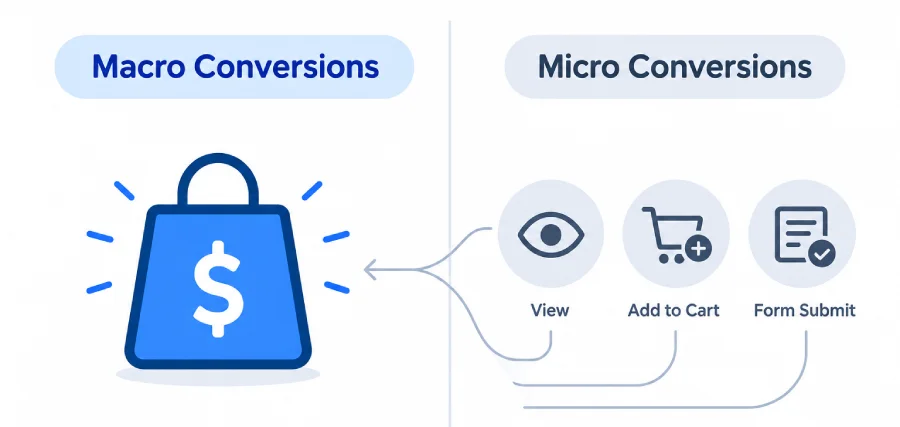
For a WooCommerce store, Purchase is almost always the primary macro conversion — it’s the one tied directly to revenue, and the one ad platforms optimize toward most aggressively when you let them.
Micro Conversions (AddToCart, ViewContent, FormSubmit)
Micro conversions are smaller steps along the way to a macro conversion — a product view, an add-to-cart, a form submission, a newsletter signup. On their own, none of these generate revenue. But they’re useful signals for two reasons:
- They let you build retargeting audiences — people who added to cart but didn’t buy, for example
- They give ad platforms an earlier, higher-volume signal to optimize toward when Purchase volume alone is too low for the algorithm to learn from efficiently
A healthy setup tracks both — macro conversions to measure what matters, micro conversions to understand and act on the funnel that leads there.
View-Through vs. Click-Through Conversions (Brief Explainer)
When a platform reports a conversion, it’s also telling you how it believes that conversion happened. Two terms come up constantly:
- Click-through conversion: the visitor clicked your ad, then converted afterward (within the platform’s attribution window).
- View-through conversion: the visitor saw your ad but didn’t click it, then converted later through some other path (like typing your site’s name directly, or finding it in a search a day later). The platform still credits the ad with influencing the decision, within a shorter attribution window than clicks typically get.
View-through attribution is genuinely useful for understanding brand influence, but it’s also the more debated of the two — there’s no way to prove a person who merely saw an ad wouldn’t have converted anyway. Most advertisers weight click-through conversions more heavily for this reason, and it’s worth knowing which type you’re looking at whenever a platform’s dashboard reports a conversion number.
How Conversion Tracking Works on WooCommerce Specifically
On a WooCommerce store, conversion tracking means connecting specific WooCommerce actions — a product added to cart, a checkout started, an order completed — to events your ad and analytics platforms understand.
Concretely, that means:
- WooCommerce fires an internal action (a PHP hook) at a specific moment — for example, when an order status changes to “completed” or “processing.”
- A tracking plugin listens for that action and translates it into the event format each platform expects — Meta’s
Purchaseevent, GA4’spurchaseevent, and so on. - That event is sent to the platform, typically from the visitor’s browser, carrying relevant details: order value, currency, product IDs.
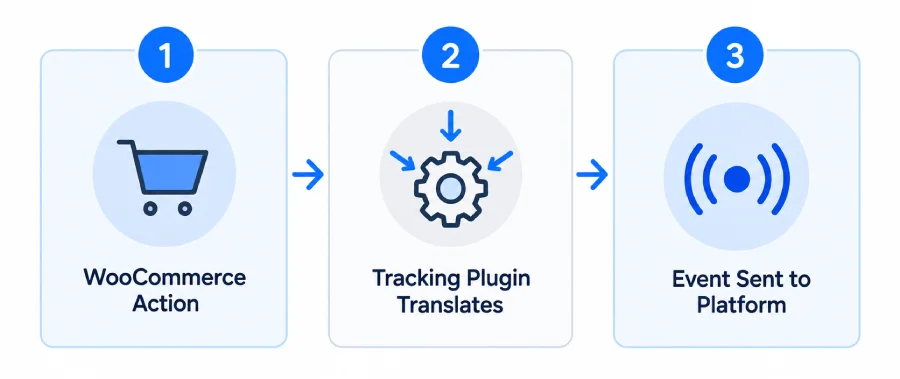
The tricky part is that WooCommerce doesn’t come with this mapping built in — it fires its own internal hooks, but has no native concept of “send a Meta Purchase event” or “send a GA4 purchase event.” That translation layer is exactly what a tracking plugin exists to provide.
What Breaks Conversion Tracking (Preview of Common Failure Points)
Conversion tracking is fragile in ways that aren’t obvious until something goes wrong. A few of the most common failure points:
- Caching plugins serving a cached version of your thank-you page, so the Purchase event never fires for a returning visitor
- Consent banners blocking tracking scripts entirely (or not restoring them correctly after consent is granted)
- Ad blockers and browser privacy features (like Safari’s Intelligent Tracking Prevention) silently dropping browser-side events
- Theme or plugin conflicts causing an event to fire twice, inflating your reported conversions
Each of these produces the same symptom — numbers in your ad account that don’t match your actual WooCommerce orders — with a different underlying cause. We cover each of these failure points in dedicated troubleshooting guides, since diagnosing which one you’re dealing with usually means looking at the actual event data, not just the final report.
How PixLedger Makes Conversion Tracking Transparent
Most tracking plugins give you a settings page and nothing else — you configure your Pixel ID and GA4 Measurement ID, and from then on you’re trusting the events are firing correctly, with no way to check besides the platform’s own delayed, aggregated dashboards.
PixLedger takes a different approach. Every conversion event it fires — AddToCart, InitiateCheckout, Purchase, and the rest — is also logged locally in your WordPress database, in real time, with:
- The exact event name and payload sent
- A status: sent, failed, or blocked by consent
- The specific reason if something didn’t fire
Instead of comparing your WooCommerce order count to your ad account’s numbers and wondering where the gap comes from, you can open PixLedger’s Event Log and see, event by event, exactly what fired and what didn’t.
Pro Tip: If your ad platform’s reported conversions are consistently lower than your actual WooCommerce order count, check your Event Log for events with a “blocked by consent” status before assuming anything is broken. On stores with a cookie consent banner, this is one of the most common — and easiest to fix — causes of under-reported conversions, and it’s often mistaken for a technical failure.
Frequently Asked Questions
What is a conversion event?
A conversion event is the specific, named action sent to an ad or analytics platform when a conversion happens — for example, Meta’s Purchase event or GA4’s purchase event. The conversion is the real-world action; the event is the technical message that reports it.
What is ecommerce conversion tracking?
Ecommerce conversion tracking is conversion tracking applied specifically to an online store — tracking actions like ViewContent, AddToCart, InitiateCheckout, and Purchase, usually with product and order details (price, currency, product IDs) attached to each event.
What is conversion tracking in Google Analytics?
In GA4, conversion tracking means marking specific events (like purchase or generate_lead) as “key events” (formerly called conversions), so GA4’s reports and any connected Google Ads account can measure and optimize toward them specifically, rather than treating them like any other tracked event.
Do I need conversion tracking if I’m not running paid ads yet?
It’s still useful — conversion data feeds analytics reports beyond just ad platforms, showing you which pages, campaigns, or referral sources lead to sales. But it becomes essential the moment you start any paid advertising, since ad platforms rely on it both to measure and to optimize delivery.
Ready to see every conversion event, tracked and logged locally? Install PixLedger free from WordPress.org and stop guessing whether your Purchase events are actually firing.
Leave a Reply
You must be logged in to post a comment.